Slicing up objects with the Bisect tool in Blender

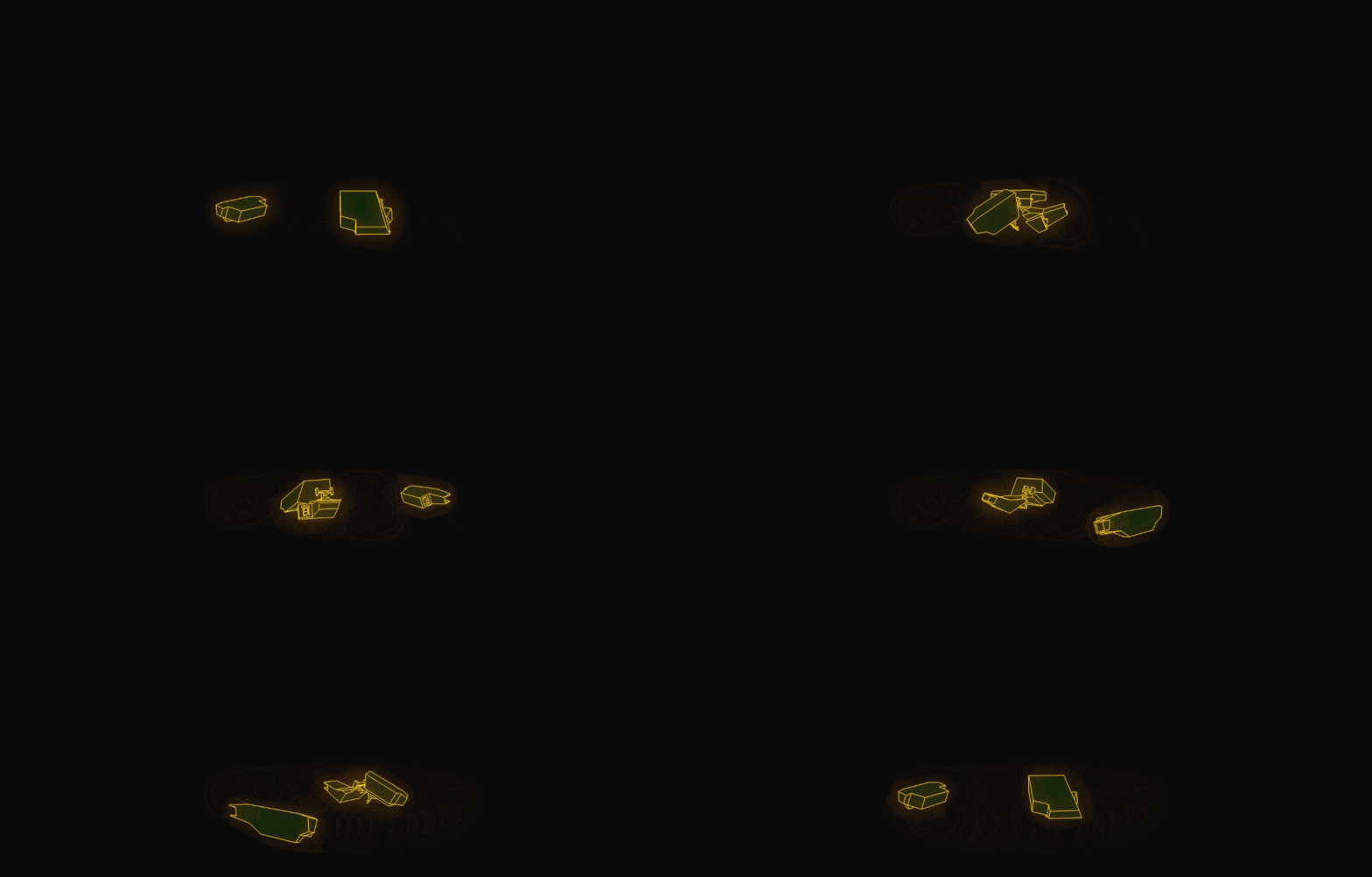
I'm building a little video game, not dissimilar to the 1980 vector graphics classic Battlezone1, and I wanted enemy tanks to blow up in to neatly sliced up pieces. Working in blender I found that tt's a bit of complicated series of shortcut key incarnations to get this to happen. So I'm writing this down as much to help myself to remember how to do it in the future.
Start with your object, in this case it is my enemy tank model.
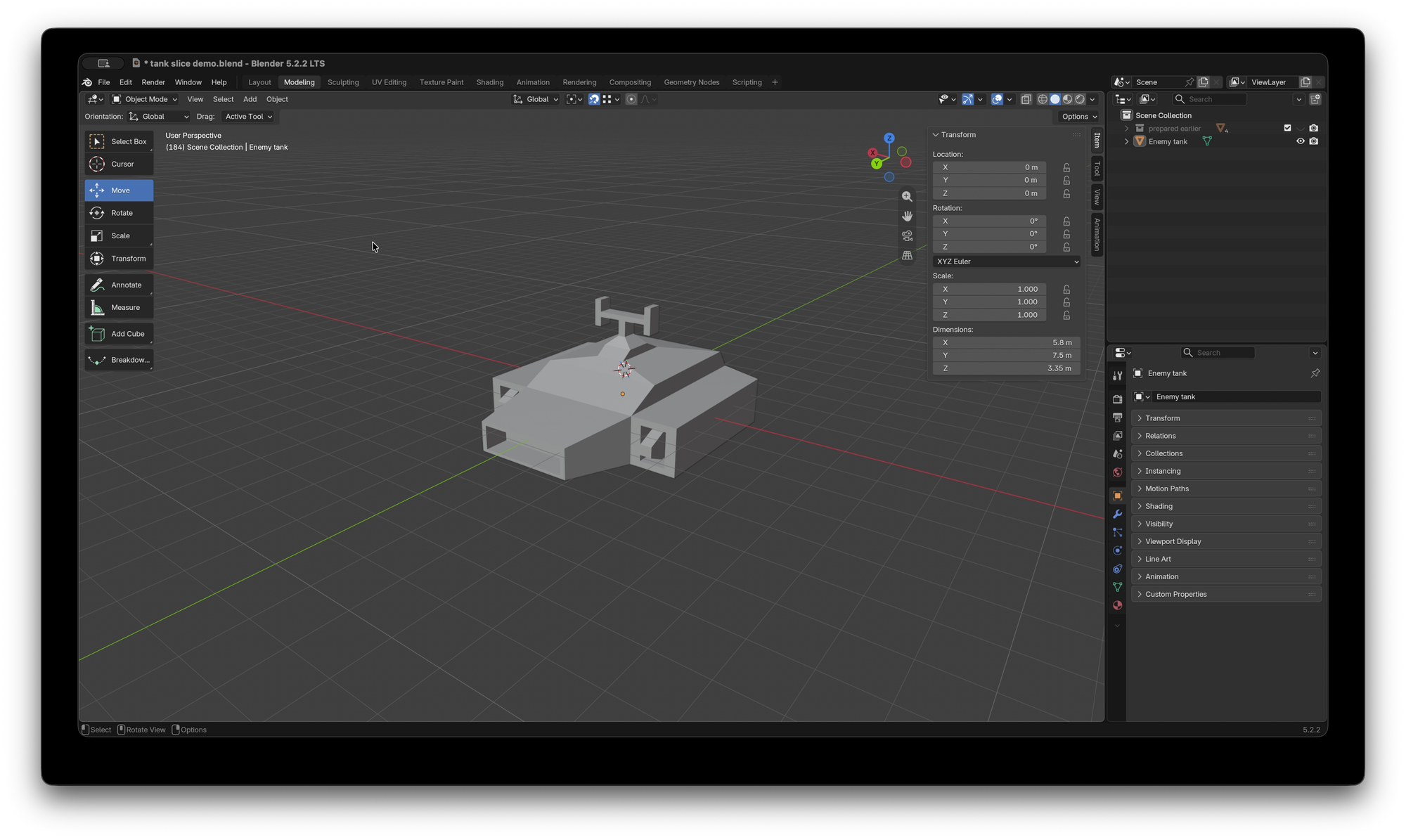
Next go in to Edit mode
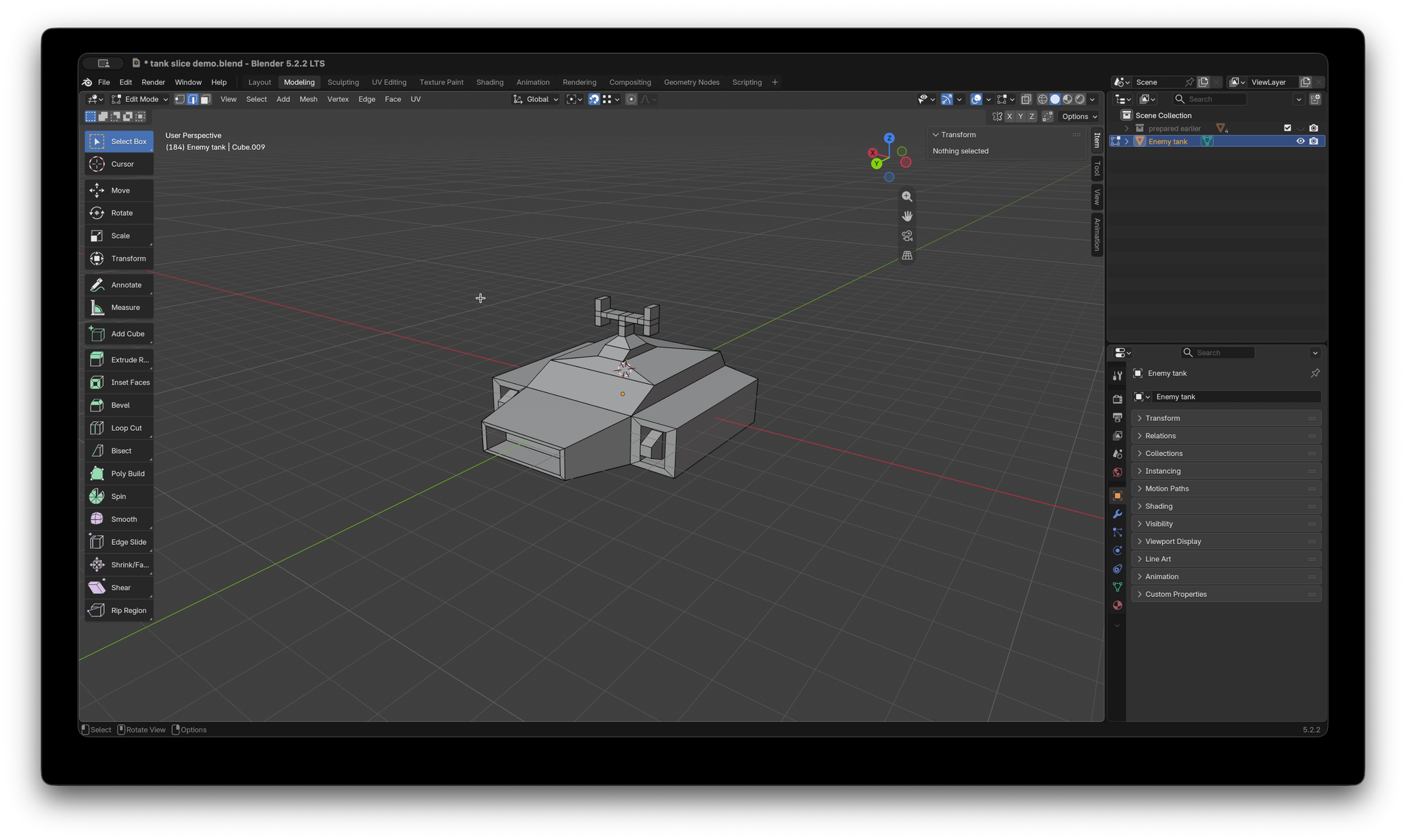
Press A to select all the vertices
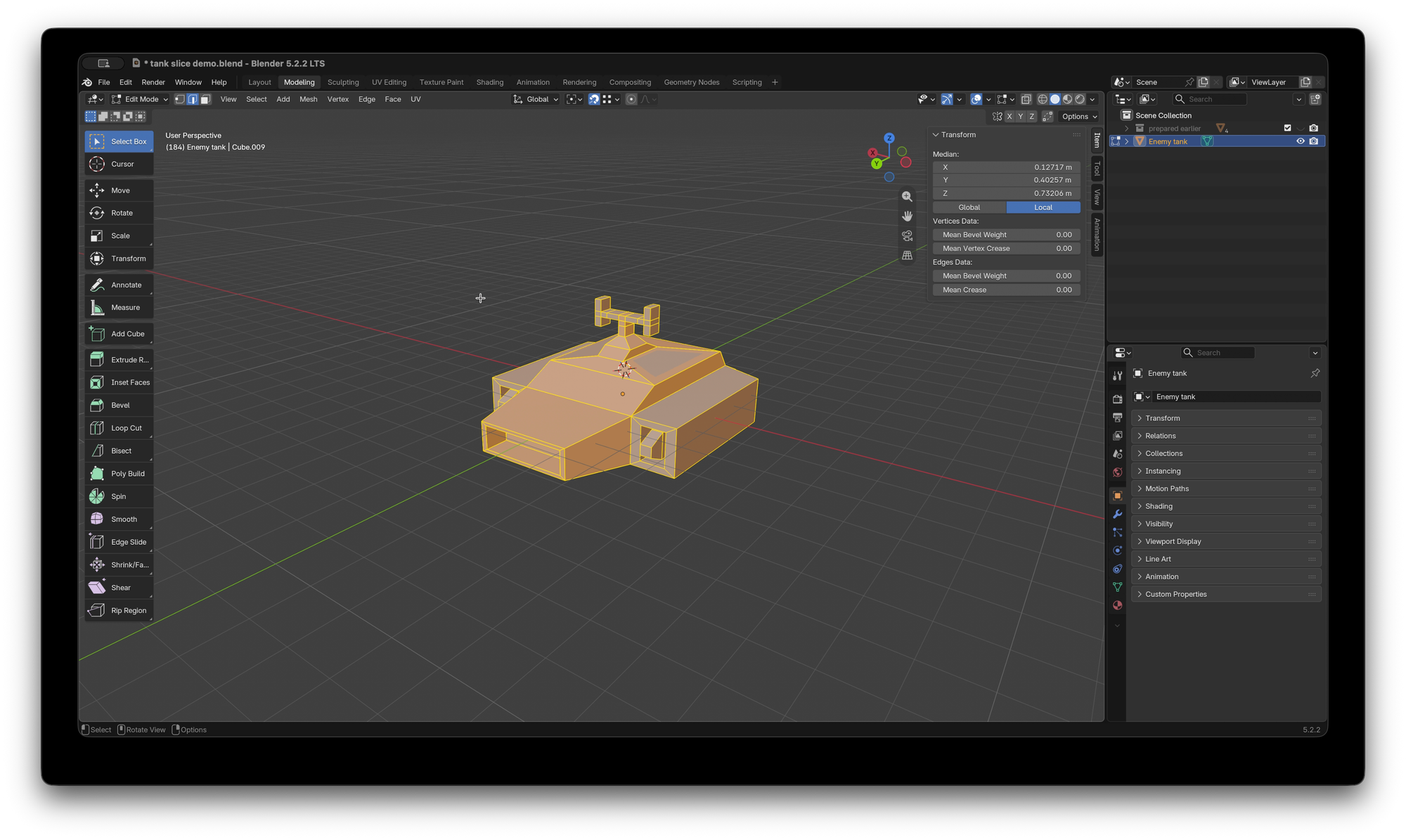
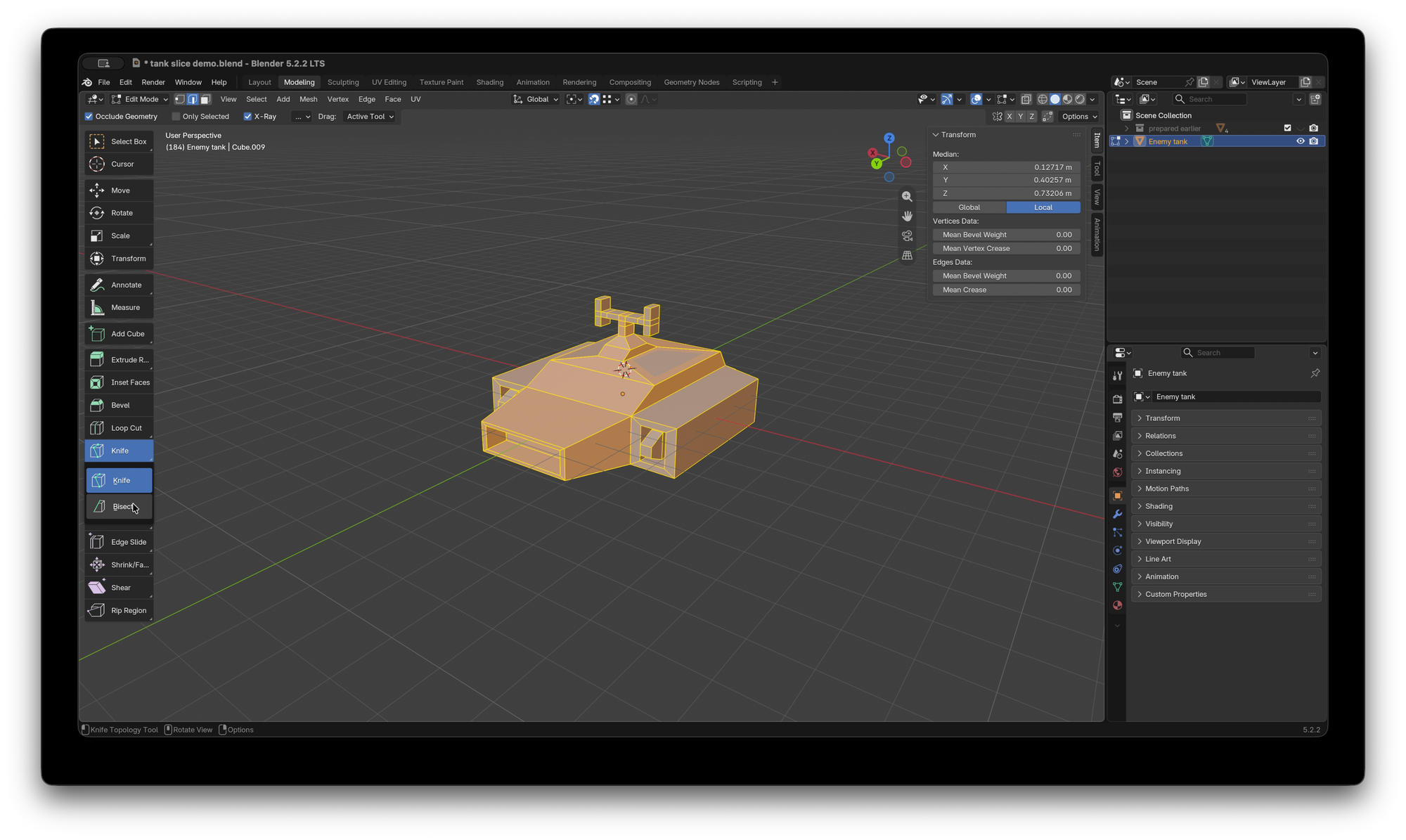
Now select the Bisect tool (which is likely behind the Knife tool, click and hold to select the Bisect Tool from a drop down)
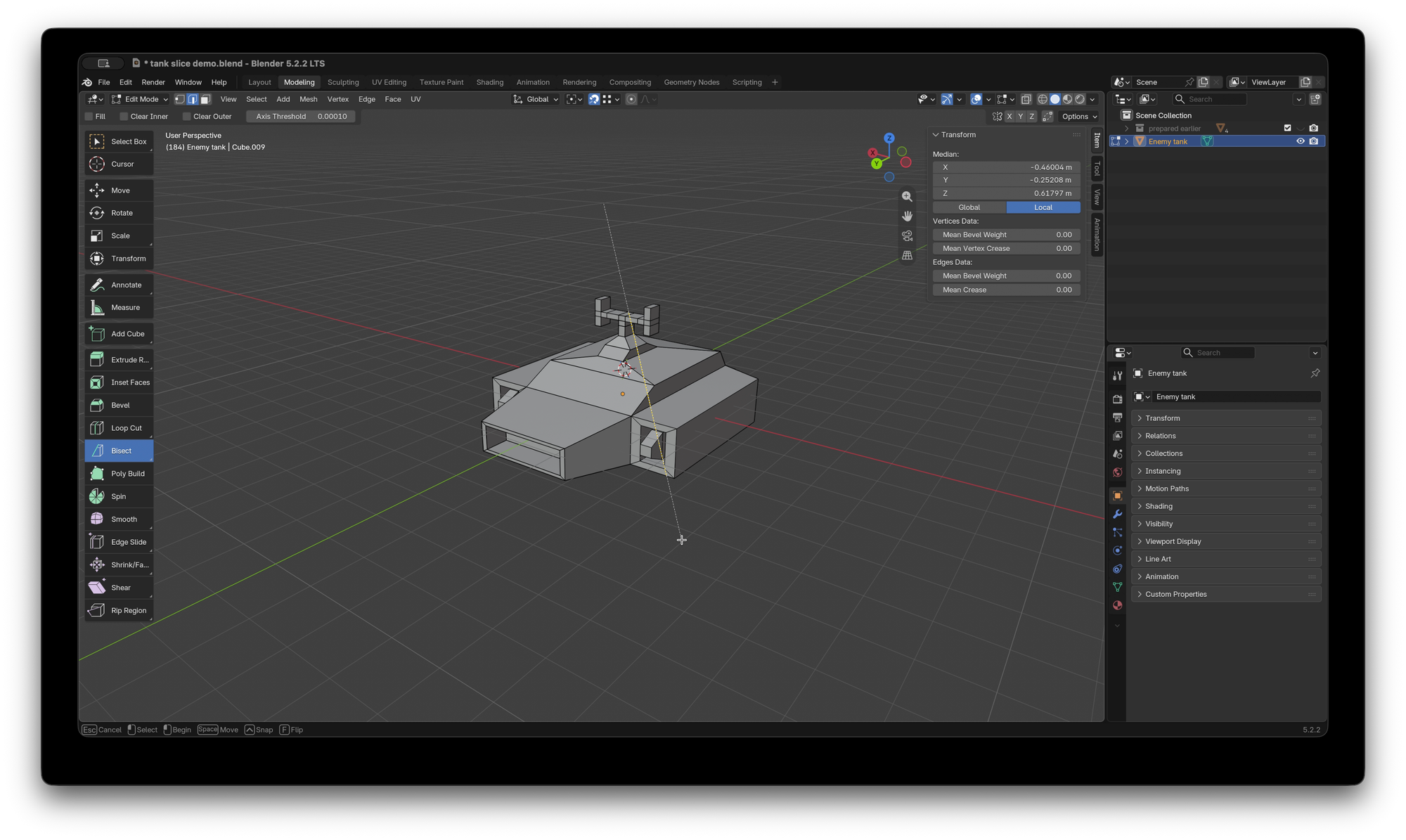
Left-click and drag to draw your Bisect line through the object
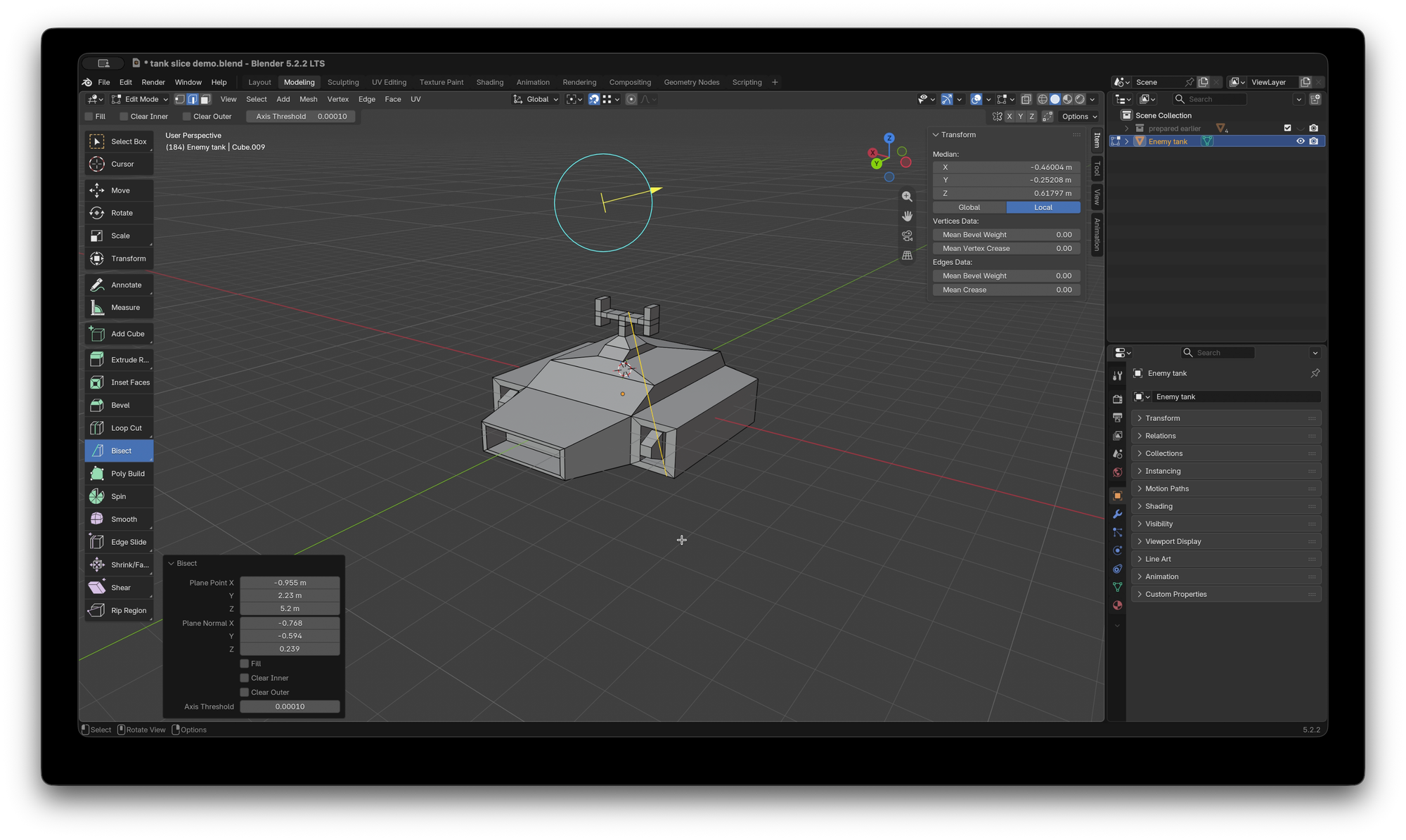
Release to set the line
Press V to cut
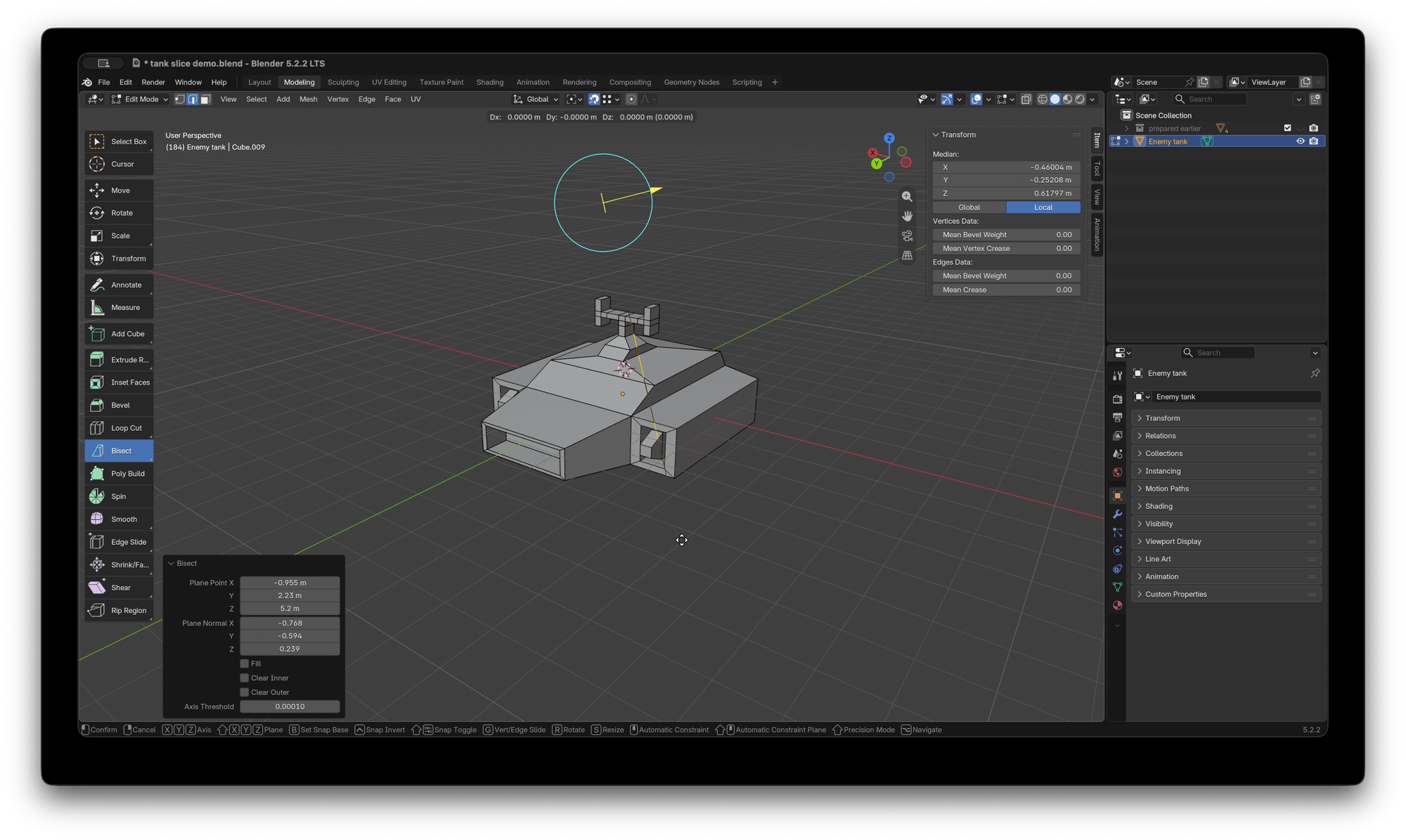
Press Escape (otherwise all the newly cut vertices will follow your cursor around and smudge 3d gunk all over the place🫠)
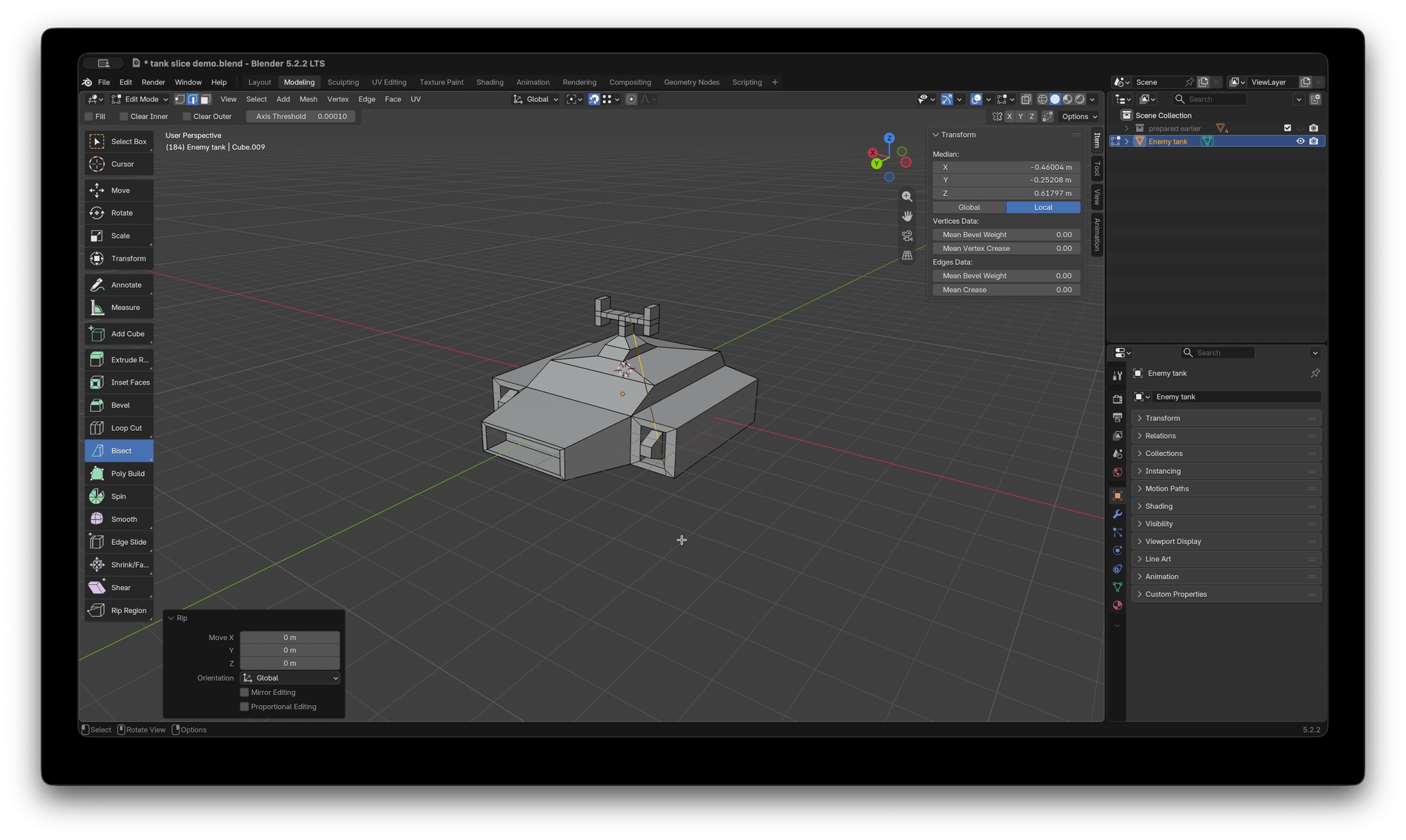
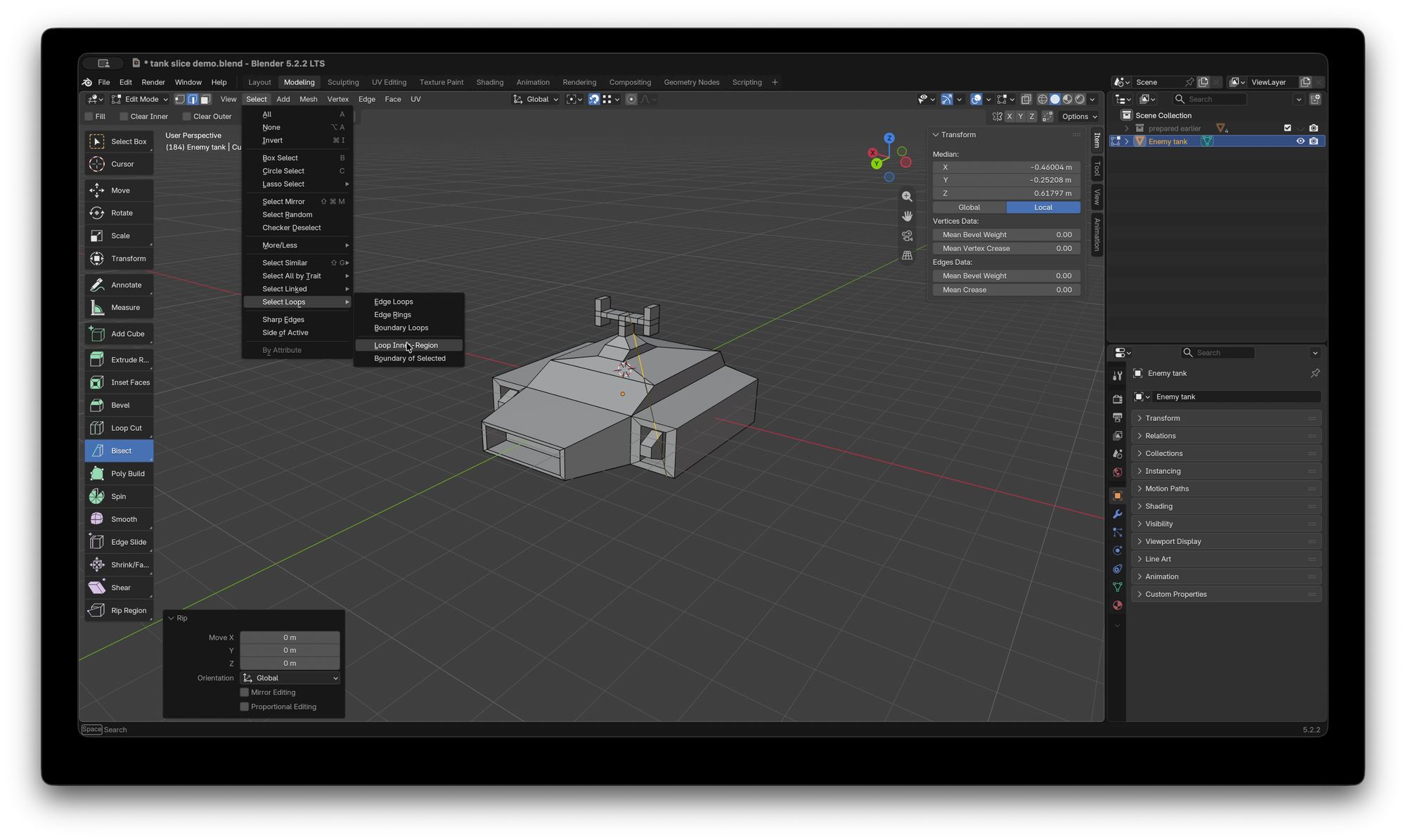
Now go to Select > Select Loops > Loop Inner-Region to select all the of the vertices along your newly sliced edge.
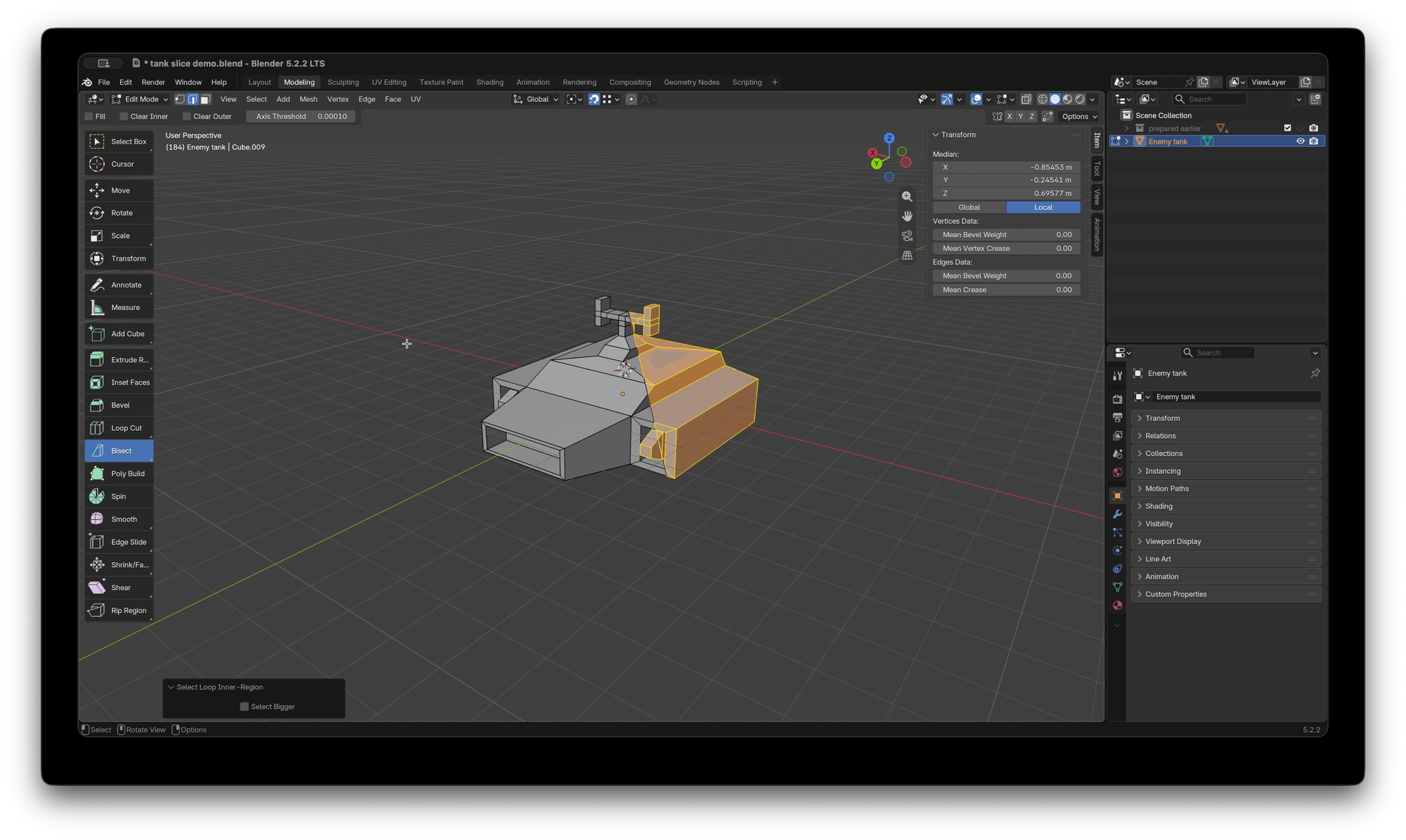
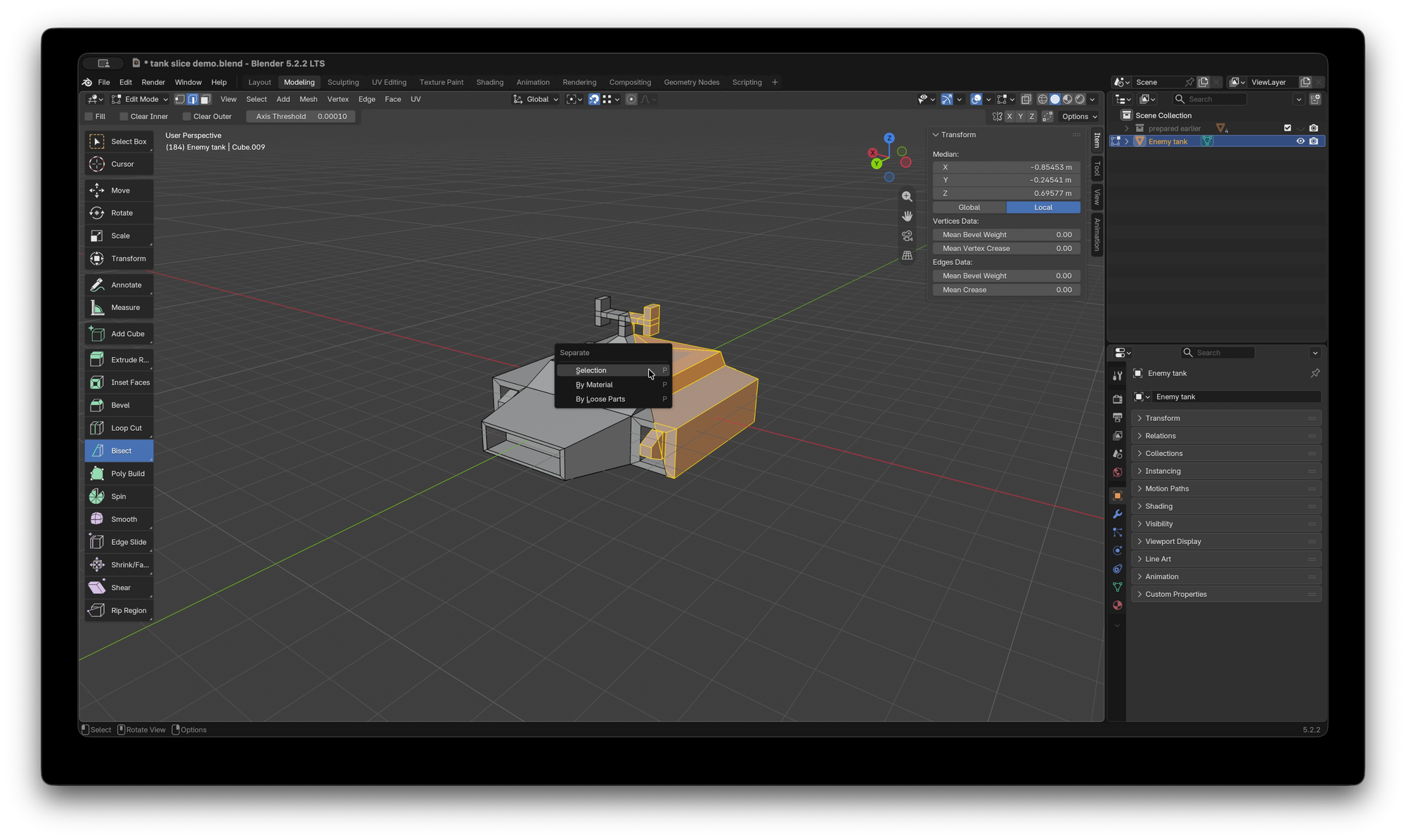
Press P to bring up the Seperate menu and choose Selection
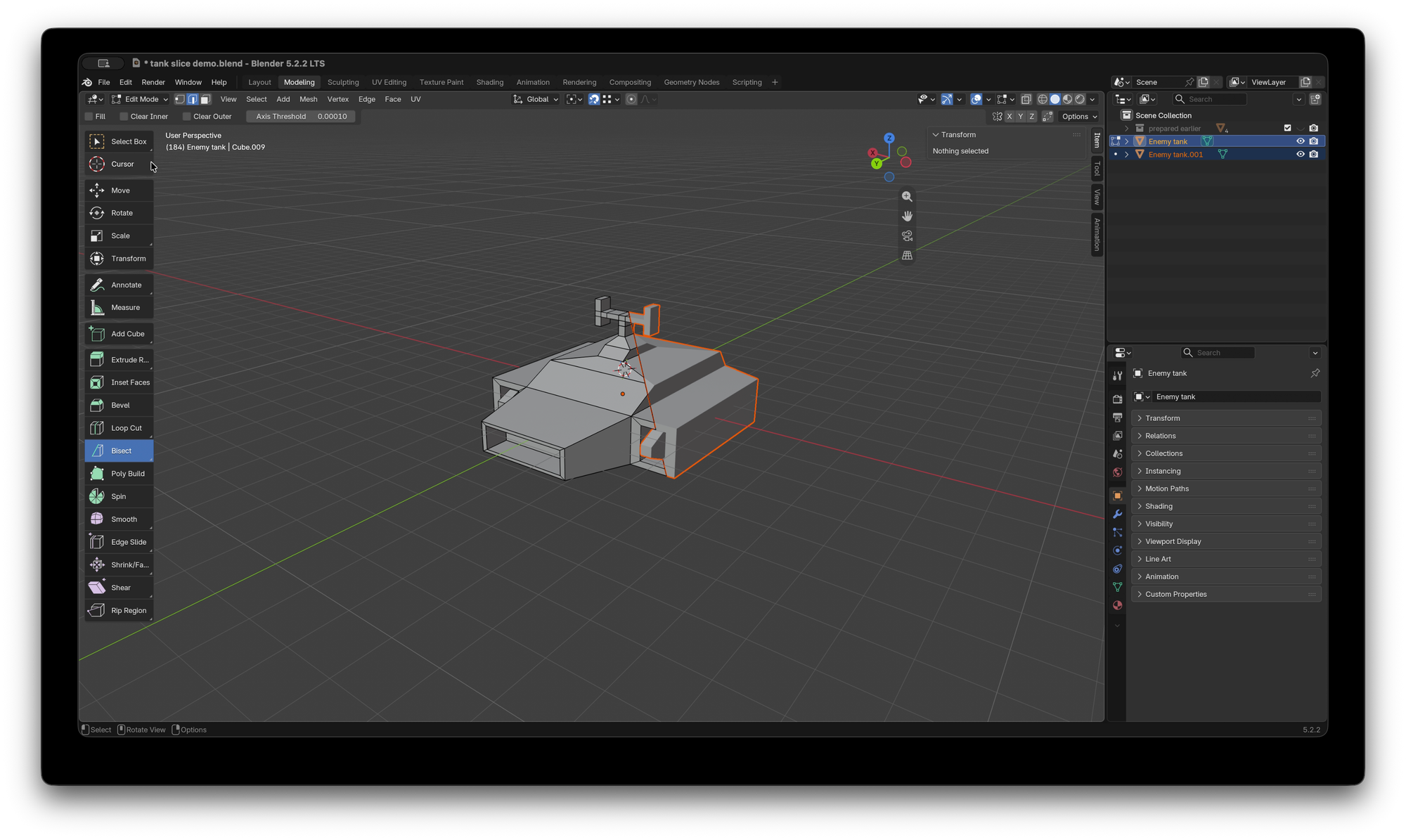
You can switch back to Object mode to see your two new objects.
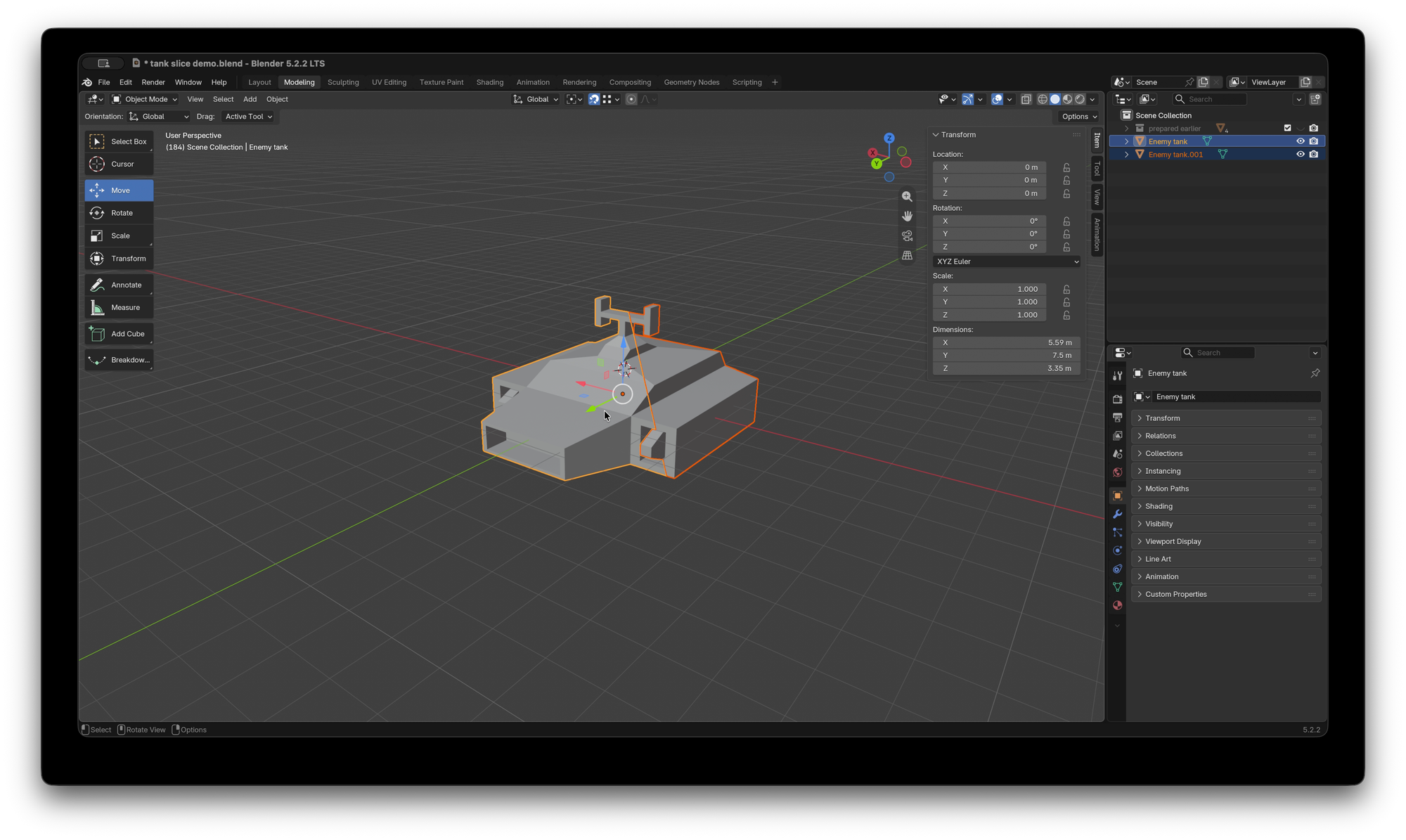
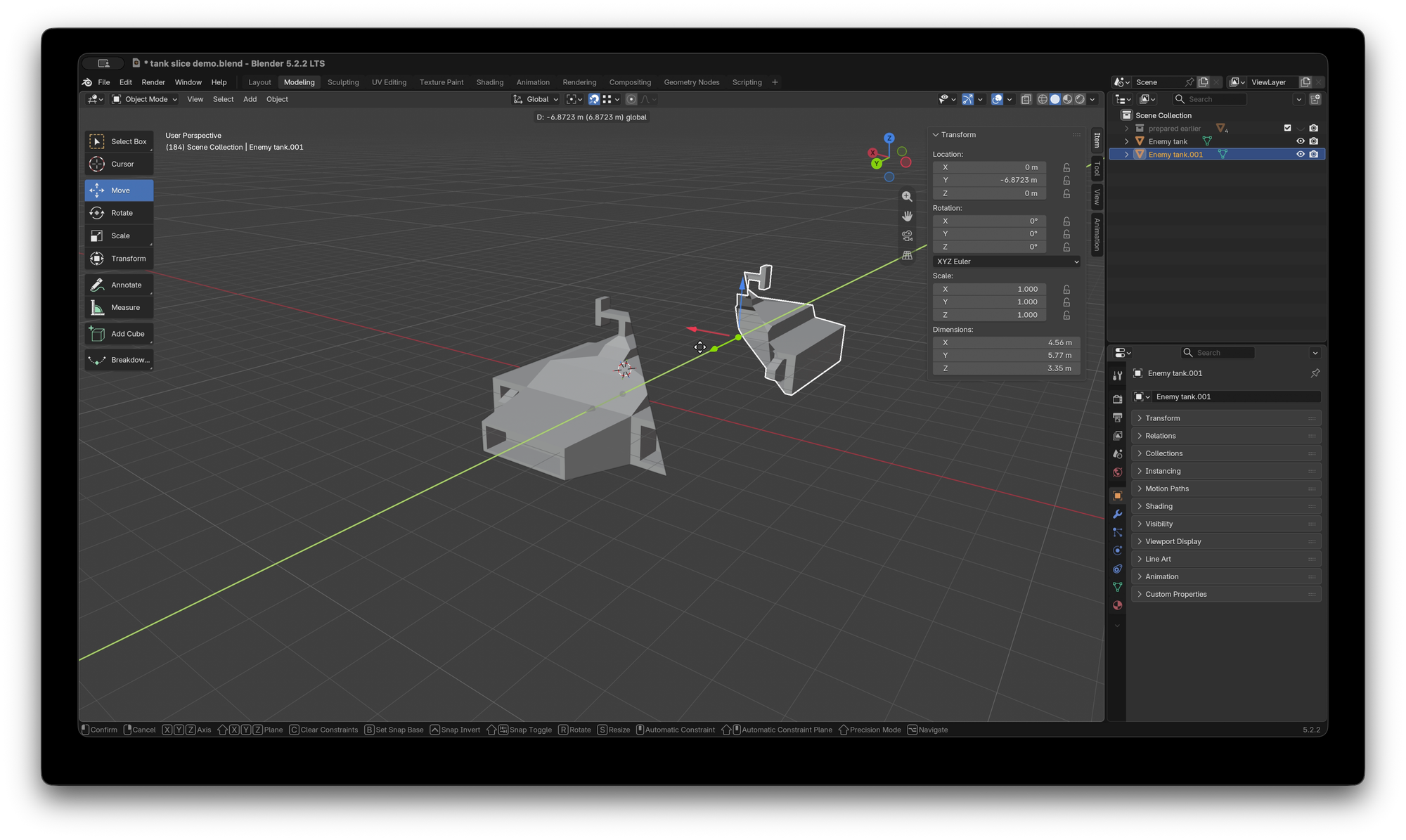
Choose one of those new objects and using the Move tool you can peek inside to see that the inside of the object is visible.
Switch back in to Edit mode.
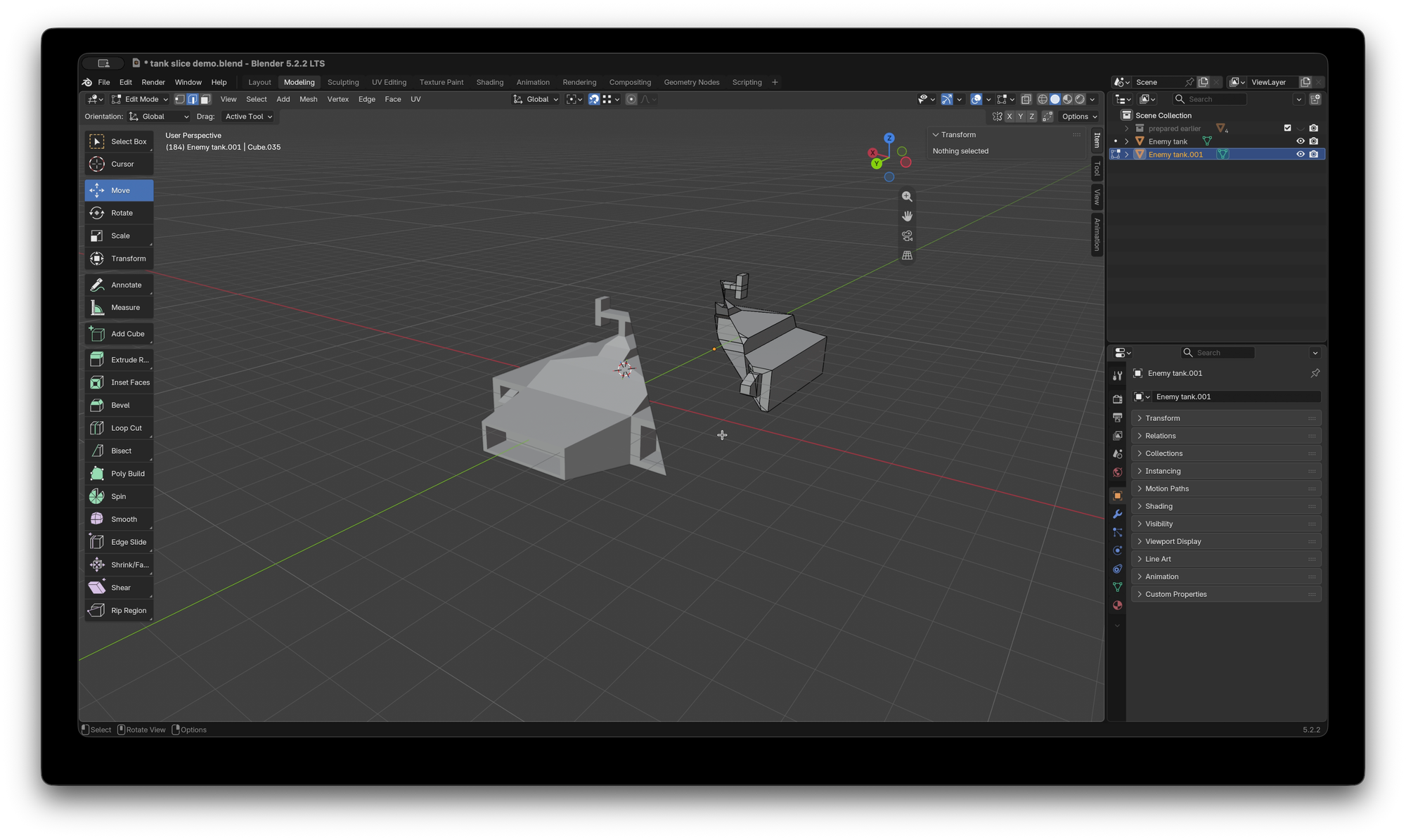
Hold Shift + Alt then click to select all the edges. You may have to click on a few bits of your slice to make they're all selected.
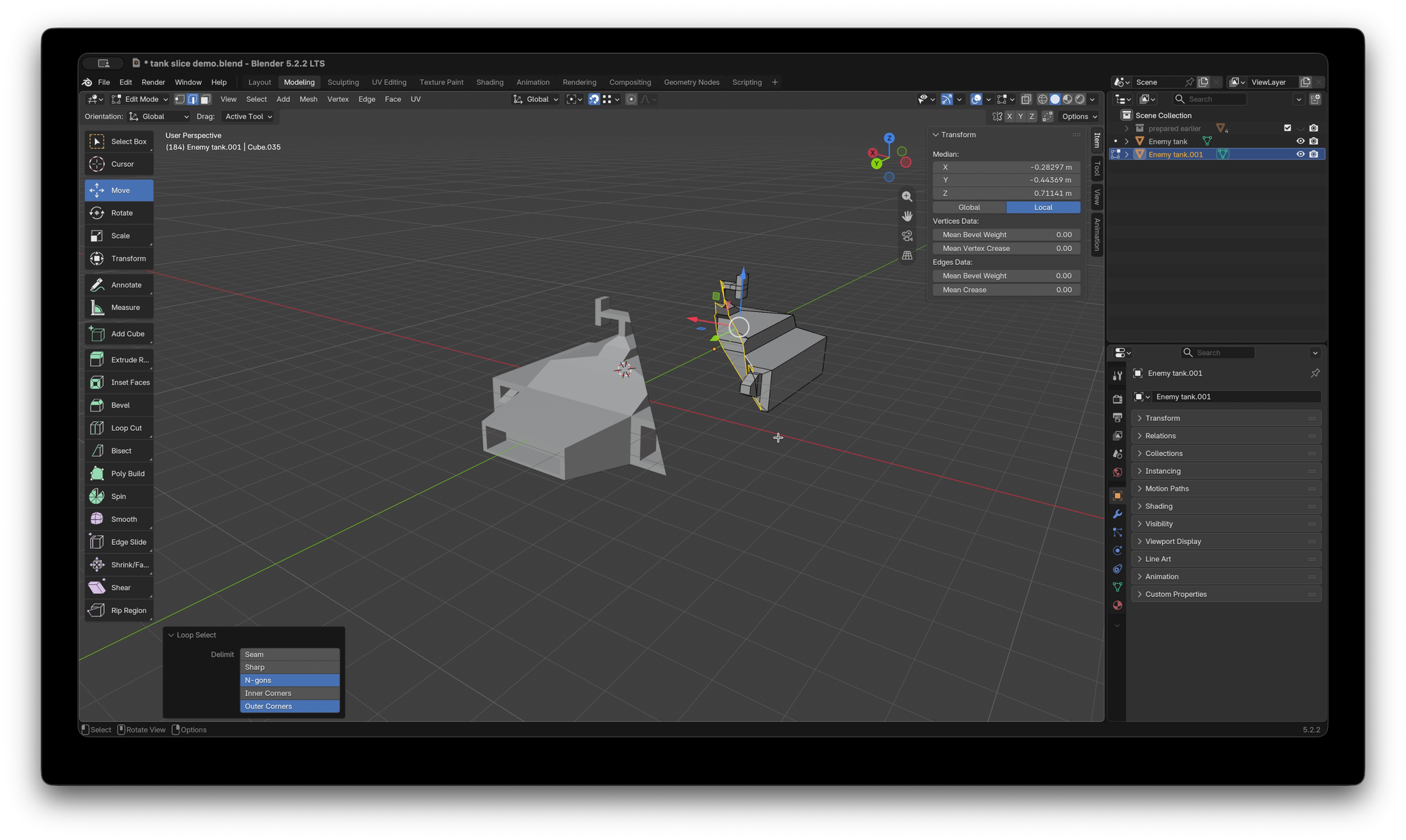
Now press F to fill that empty space with a new flat face.
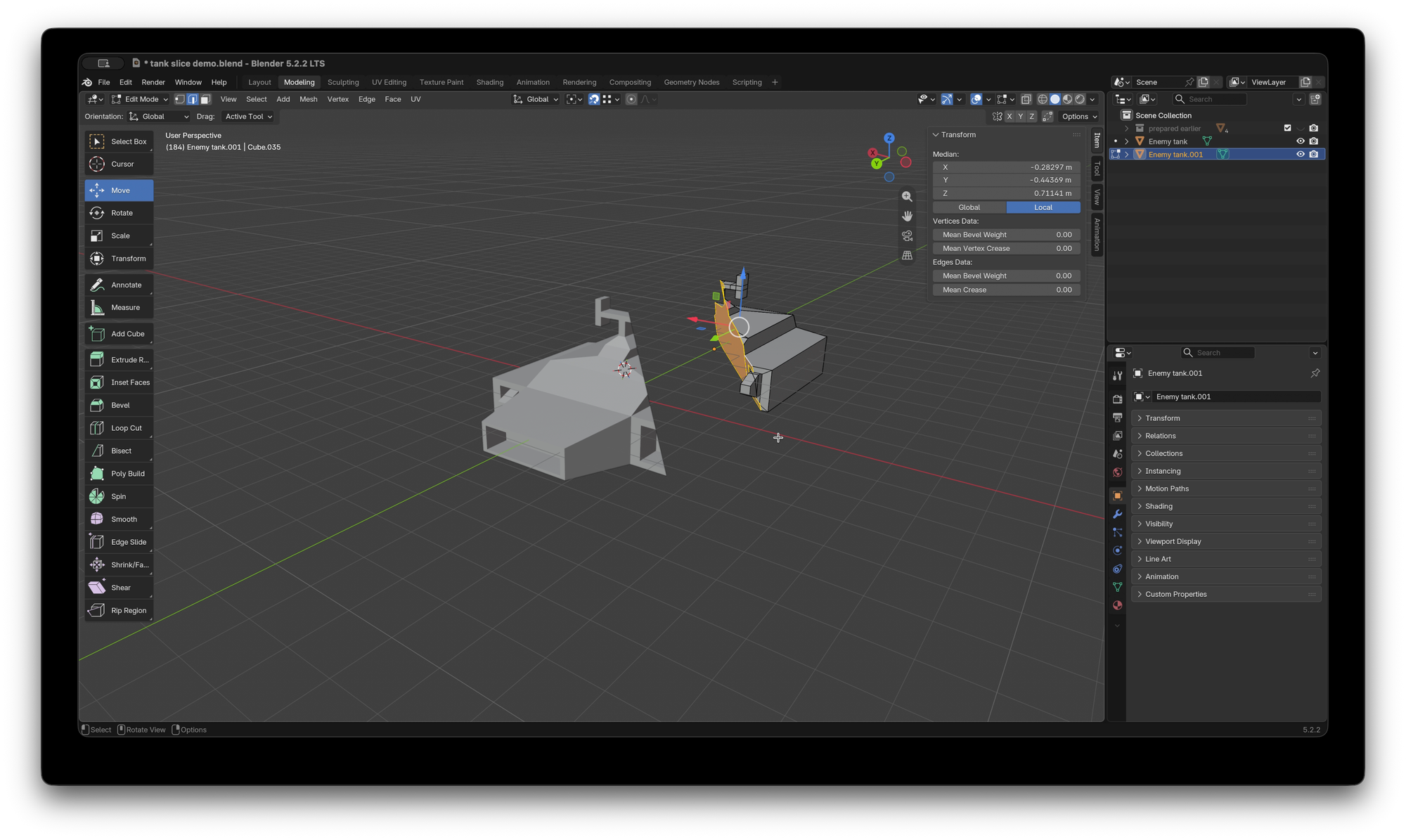
Repeat the steps for the other object.
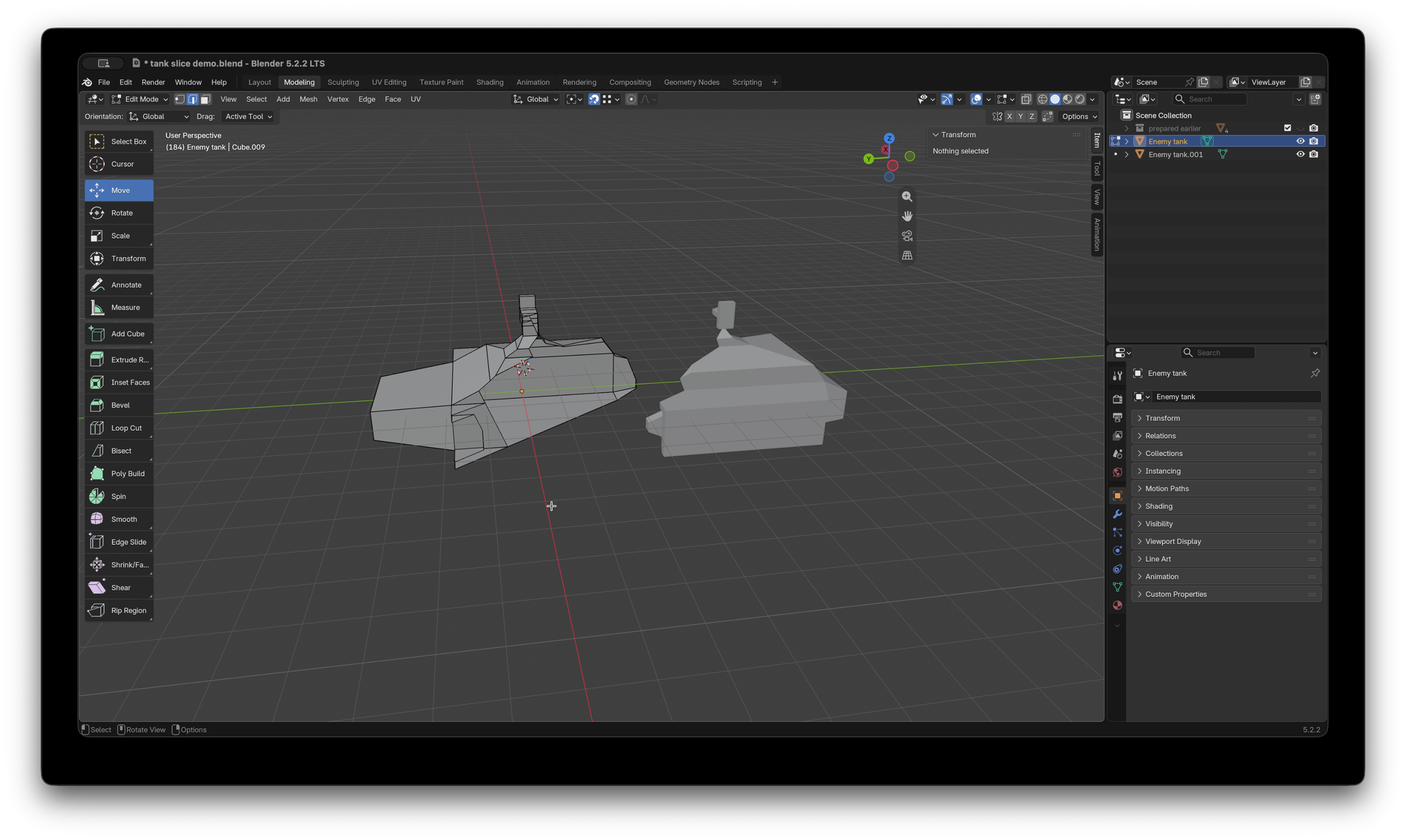
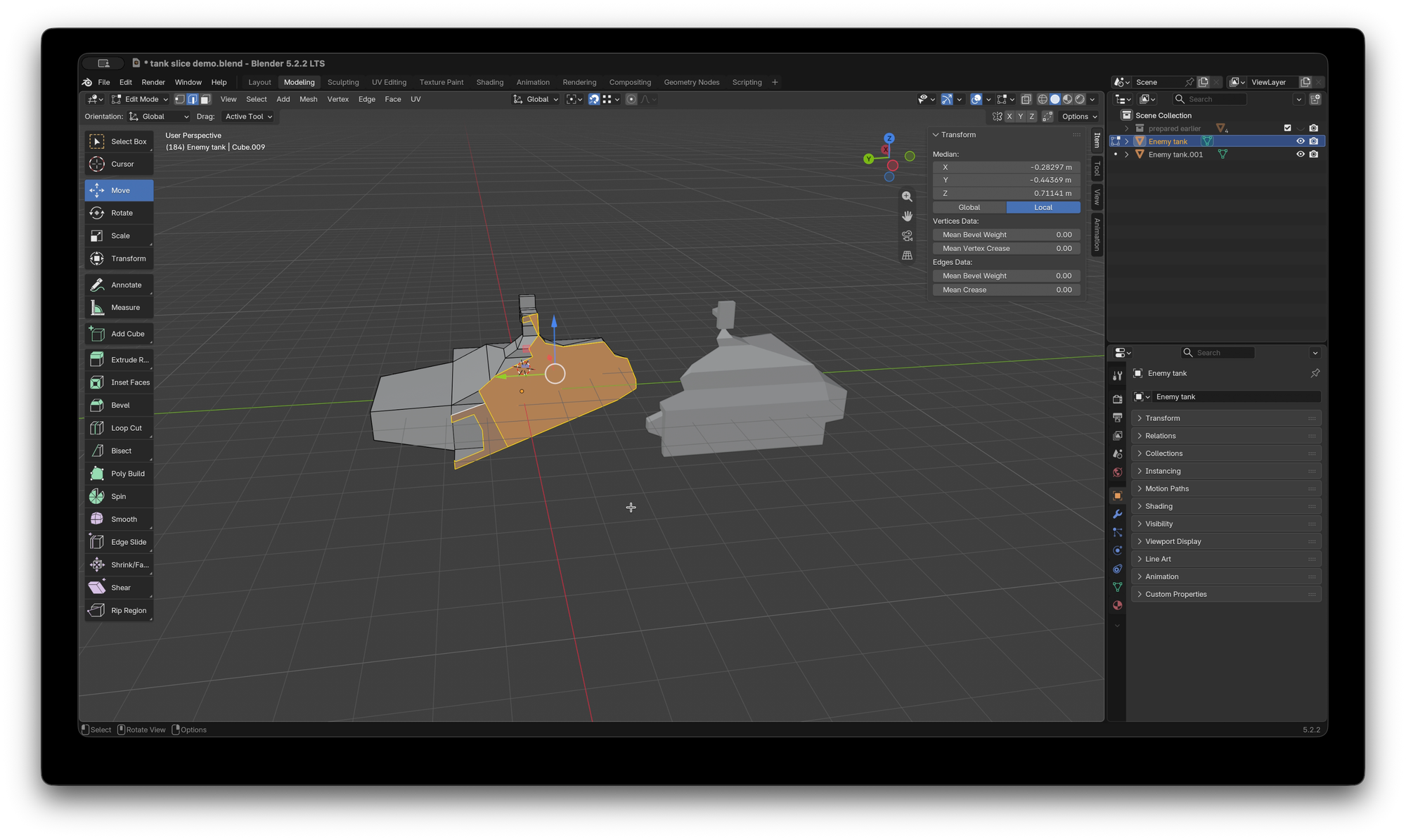
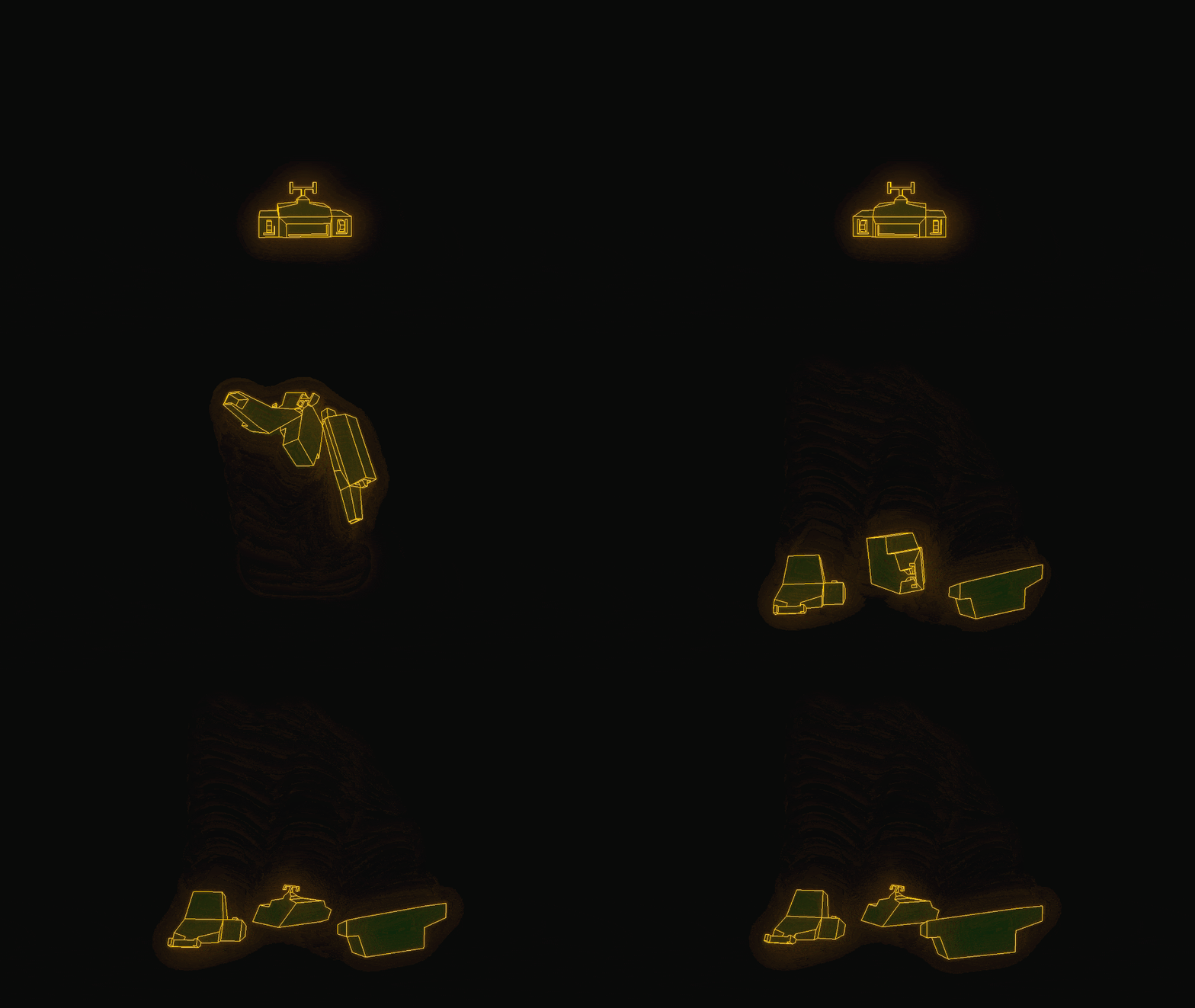
And we're done! Two perfectly sliced up objects.
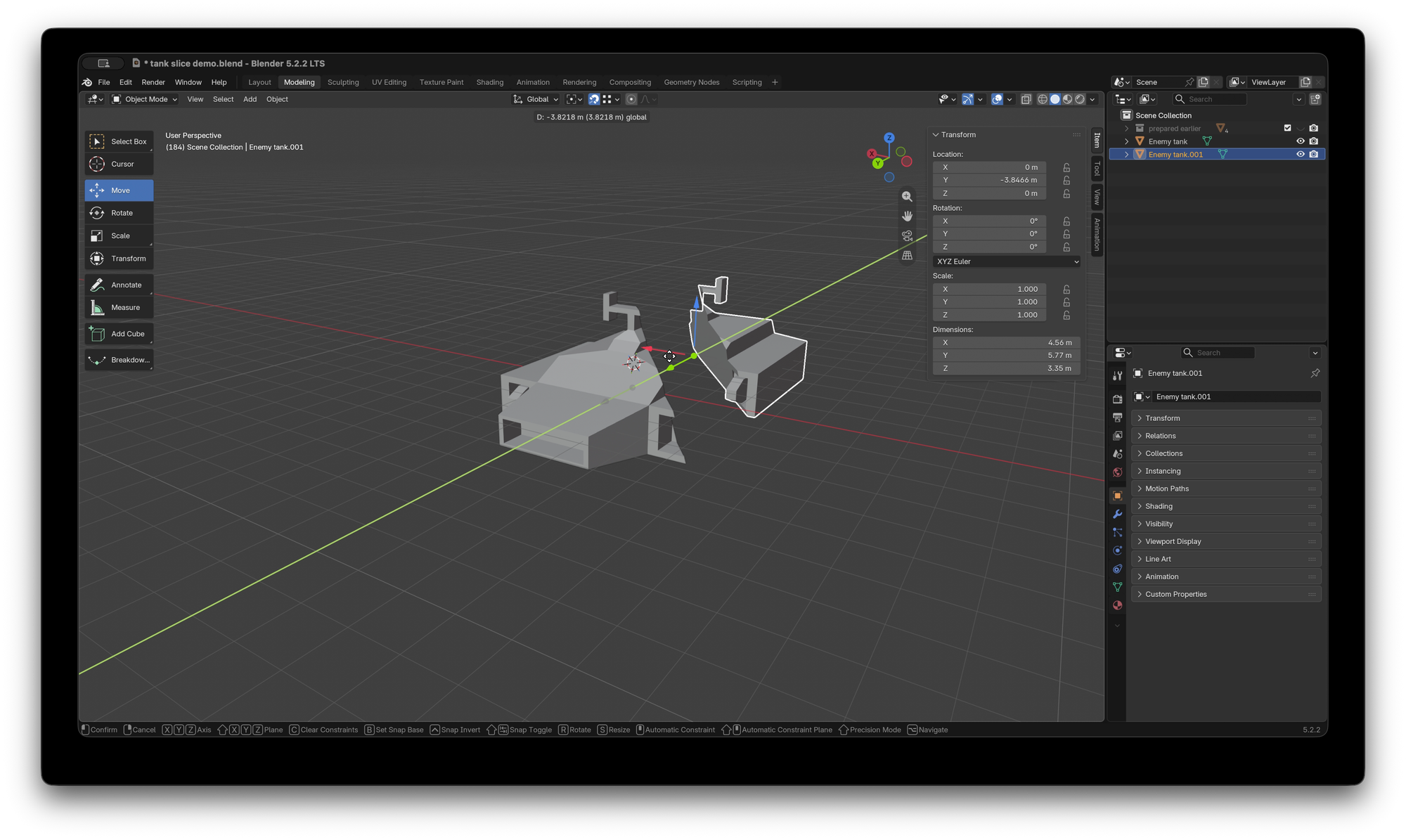
Just repeat the whole process again to slice your objects up in to more, and smaller, pieces. Perfect for blowing up polygon tanks, or even possibly for something much less violent.
I learnt how to do this by following a bunch of video tutorials. In particular iPaintSmallThings' How to Split Models in Blender | Bisect Tool. But I wished I could have had these steps written down. So this tutorial is that. Blender is a lovely tool but it is often inscrutable, with options hidden behind keyboard shortcuts and unexpected menus.
So hopefully this written tutorial makes things a little easier for those of us that prefer reading a quick article instead of scrubbing back and forth through a video.
- Battlezone is awesome and is likely the first 3d video game with a first person perspective. Designed by Ed Rotberg, Owen Rubi, Roger Hector and built on hardware designed by Wendi Allen for Lunar Lander and Asteroids. The game's design and impact are well worth reading up on. Peculiarly fascinating is the story of how publisher Atari adapted the game as a training tool for US Army tank operators, despite the objections of the designer.